Most Shopify merchants never think about checkout until it stops working for them. Maybe Shopify Payments is holding funds, maybe you want Apple Pay back, or maybe you want a one-click upsell after the buyer pays. Whop Shopify checkout solves those problems by swapping only the payment step.
This guide walks through what changes, what your buyers see on each screen, and what stays exactly where it is.
What "Whop Shopify checkout" means
Whop Shopify checkout is a setup where your store keeps running on Shopify, but the checkout page runs on Whop.
- Before checkout: nothing changes. Buyers browse your theme, add products to their Shopify cart and use your discount codes.
- At checkout: the cart, cart drawer, checkout links and Buy now buttons hand the buyer to a Whop-powered checkout page.
- After payment: the charge runs through your Whop company and the paid order is created back in Shopify, so you fulfill it the same way you always have.
It is powered by our official Whop app. Whop is not listed as a Shopify payment provider, so you will not find it in Shopify's payment settings. The app is the bridge between the two.
What happens when a buyer clicks Checkout
Here is the buyer's path, start to finish:
- A shopper lands on your Shopify product page, often from an ad.
- They add items to the cart or tap a Buy now button that skips the cart.
- They click Checkout. Instead of Shopify's checkout, they continue to your Whop checkout.
- They pay with a wallet, card or PayPal.
- They see a one-time offer if you set one up, then a thank-you page.
- You see the paid order in Shopify, ready to fulfill.
The handoff is fast and the cart contents carry over, so buyers do not have to pick their products again.
Add one-click upsells to your Whop
Install OneClick Upsell from the Whop App Store and offer a post-purchase upsell in a few minutes.
The checkout page, section by section
The checkout is built to feel familiar to anyone who has bought from a Shopify store.
Express wallets at the top
Apple Pay and Google Pay sit at the top of the page on supported devices, so returning buyers can pay in one tap. Email is captured next for receipts and order updates.
Contact and shipping
Buyers fill in a familiar Shopify-style address form. The shipping rates are the ones you already set in Shopify. Buyers pick a rate such as Standard or Express and the total updates.
Payment
Card fields, Apple Pay and Google Pay sit in one secure payment block. PayPal runs through Whop as well, so you do not need your own PayPal account. Every charge runs through your Whop company, not Shopify Payments.
Order summary from the Shopify cart
Line items, variants, subscription pricing, discount codes and totals come straight from the buyer's Shopify cart. What they saw in your store is what they pay for.
One clear pay button
There is a single call to action with your policies underneath. After payment, the buyer goes straight to your one-click upsell or thank-you page.
After payment: upsell and thank-you page
This is where Whop checkout does something Shopify checkout usually cannot do without Shopify Payments.
- One-click upsell: right after payment, you can show a one-time offer. The card on file is charged by Whop, so the buyer does not re-enter anything.
- Same order: an accepted offer is added to the same Shopify order, so it ships in the same box.
- Thank-you page: buyers see their name, order number and a confirmation note on a page styled like your store. It can carry its own offer too.
Read more in Shopify one-click upsells with Whop.
What stays in Shopify
You do not move your store. These stay in Shopify:
- Theme, products, variants and collections
- The cart and your discount codes
- Shipping rates you configured
- Orders, fulfillment and customer service
- Refunds: refund in Shopify admin, full or partial, and the matching Whop payment is refunded too
When you fulfill an order, tracking numbers sync back to Whop, so the payment shows delivery status.
Make the checkout look like your store
You can go live with the default design or match your brand:
- Colors, fonts and banners in the checkout designer
- Order bumps, reviews and trust badges
- Checkout on your own domain
- Checkout in your buyer's language
Set up Whop checkout on Shopify in 4 steps
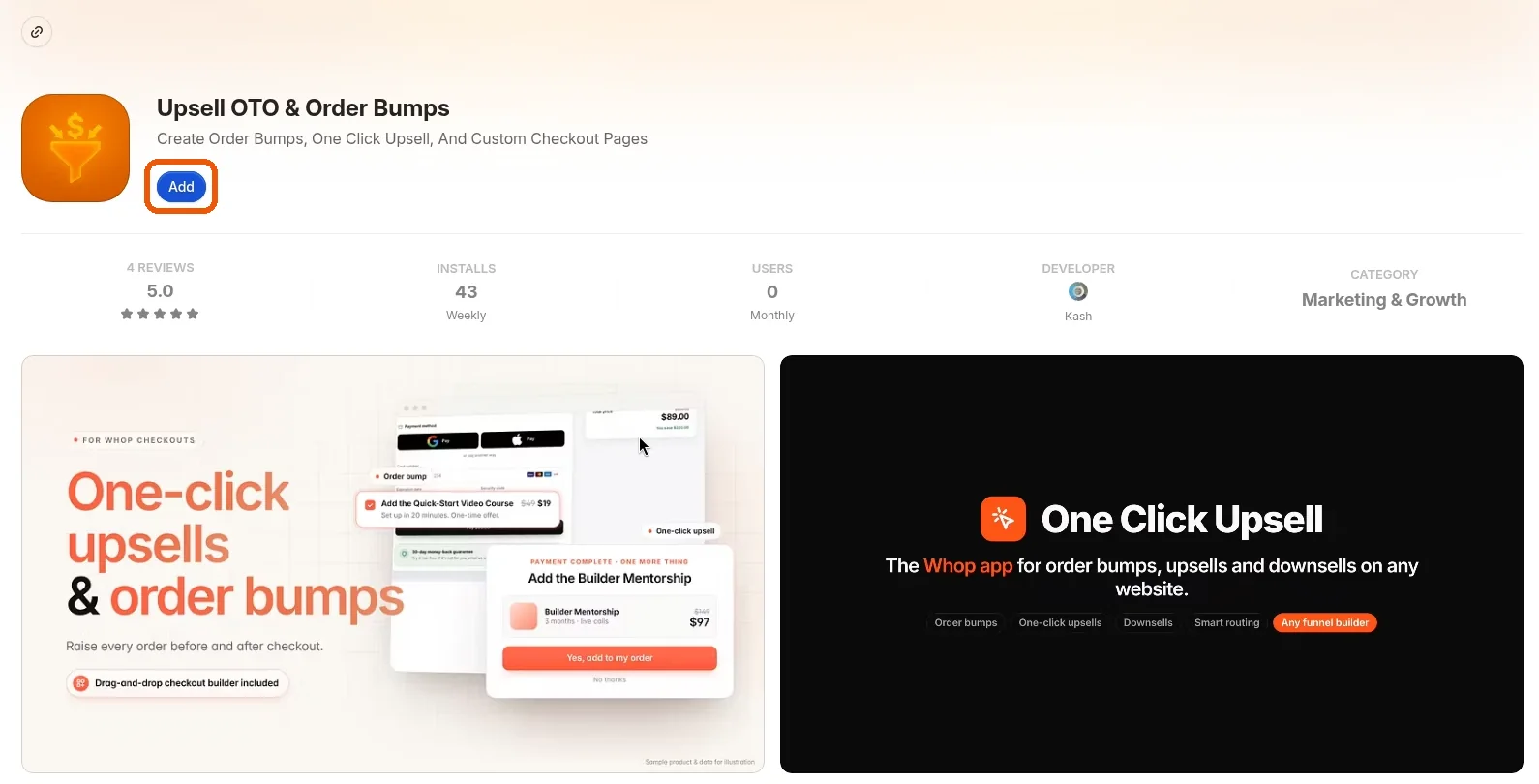
Install our official Whop app
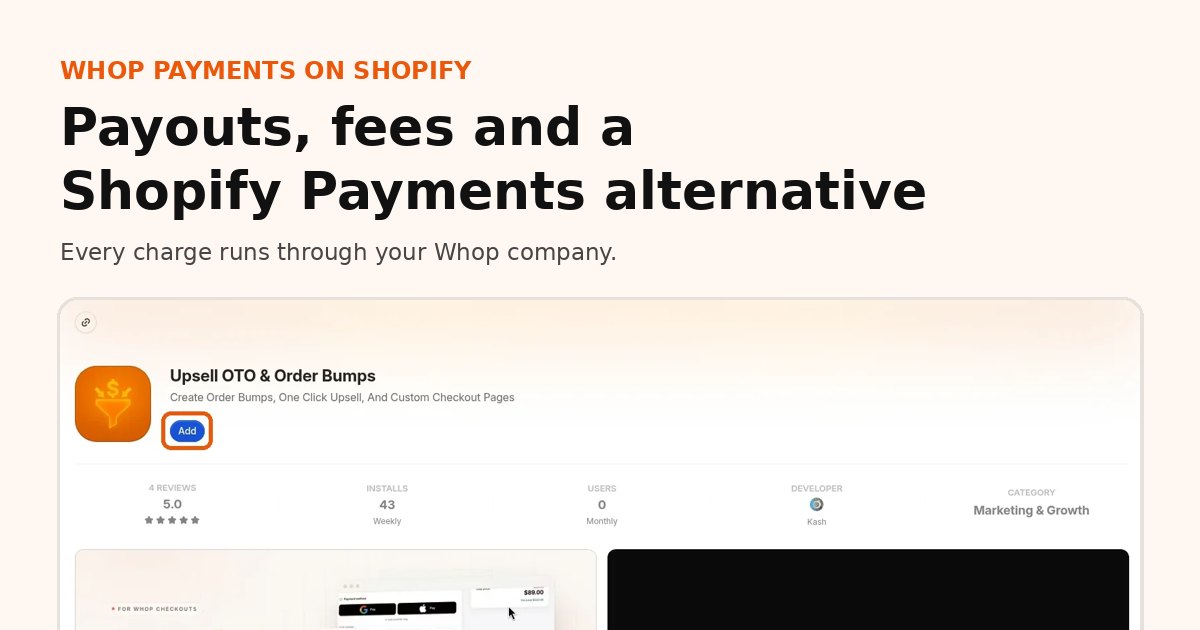
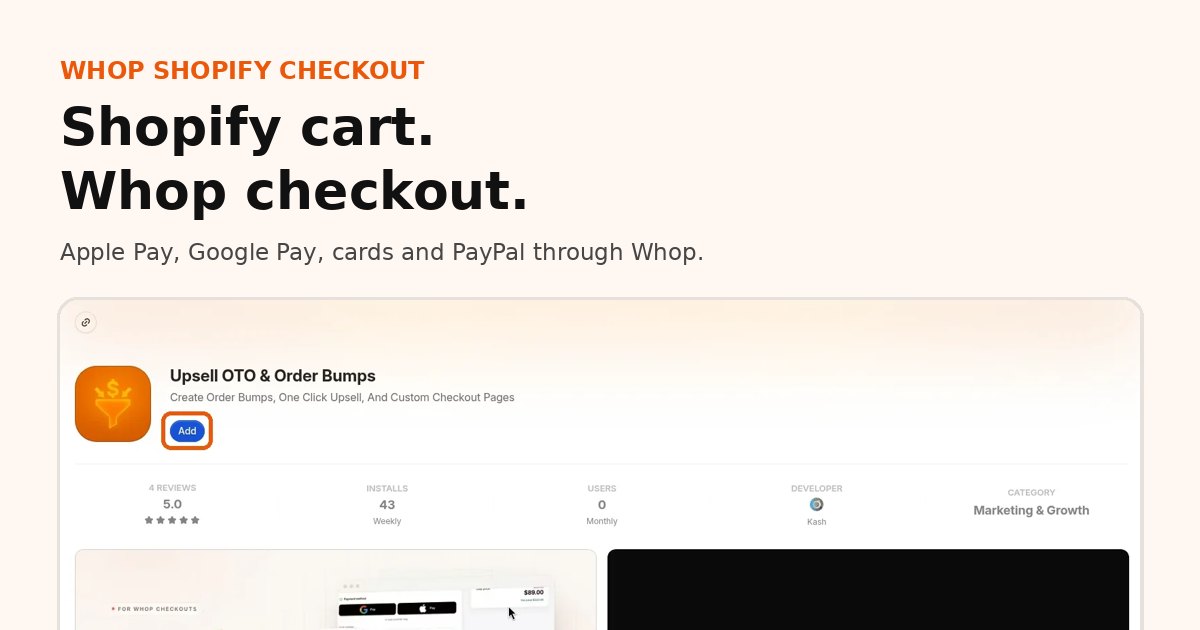
Find the app on the Whop App Store (listed as Upsell OTO & Order Bumps) and click Add. Choose the Whop company that should get paid.
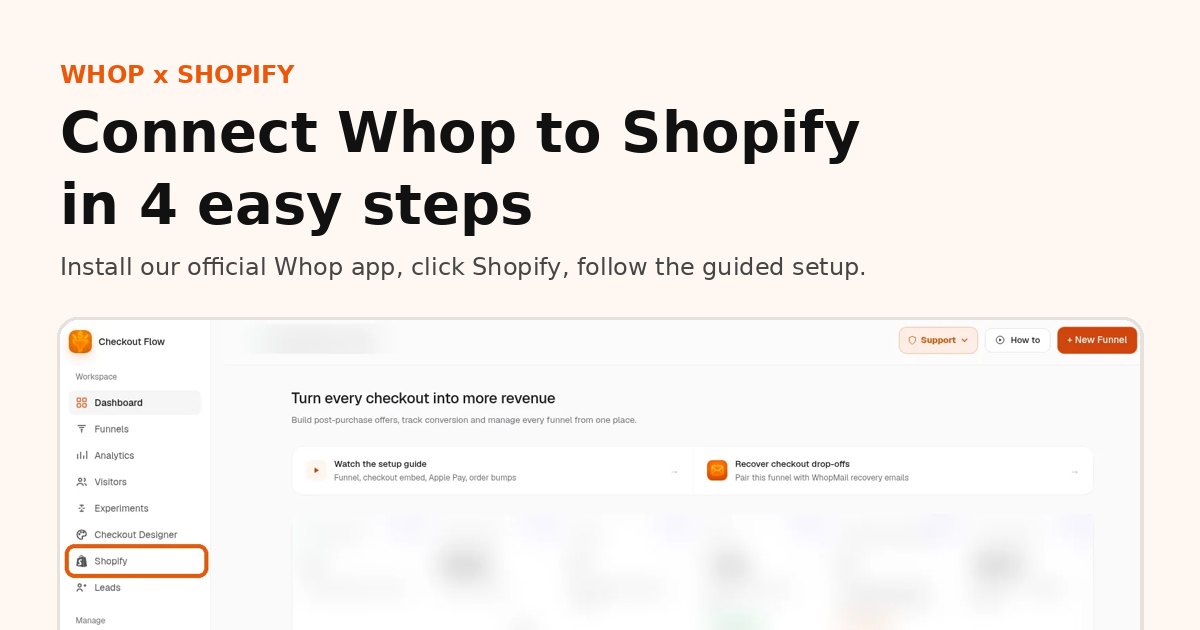
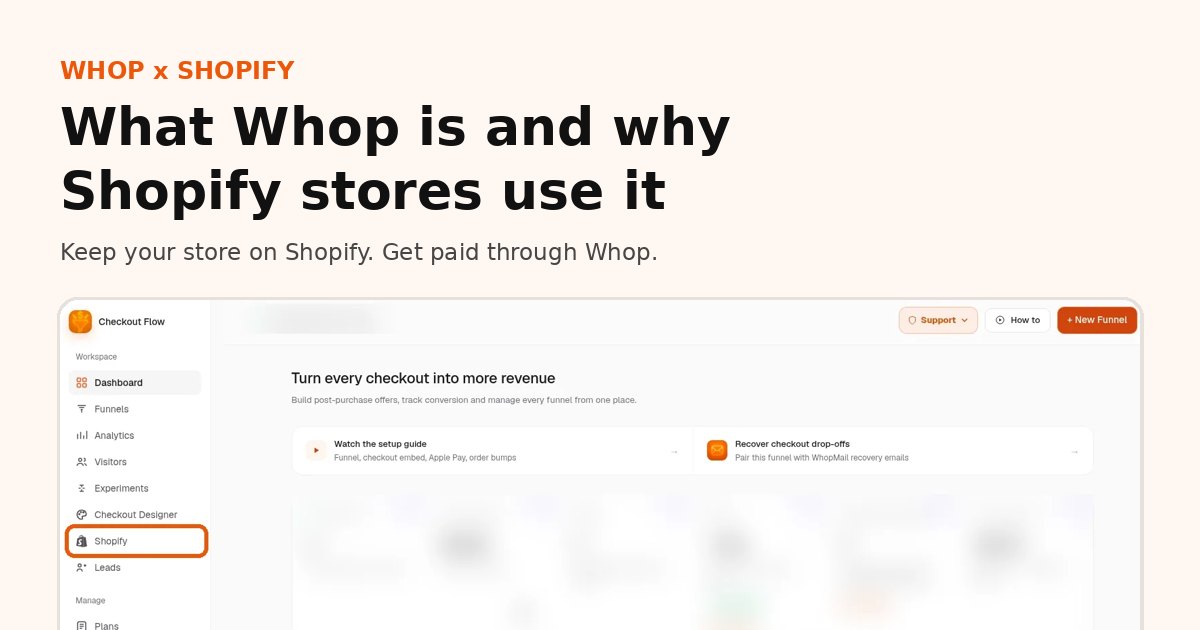
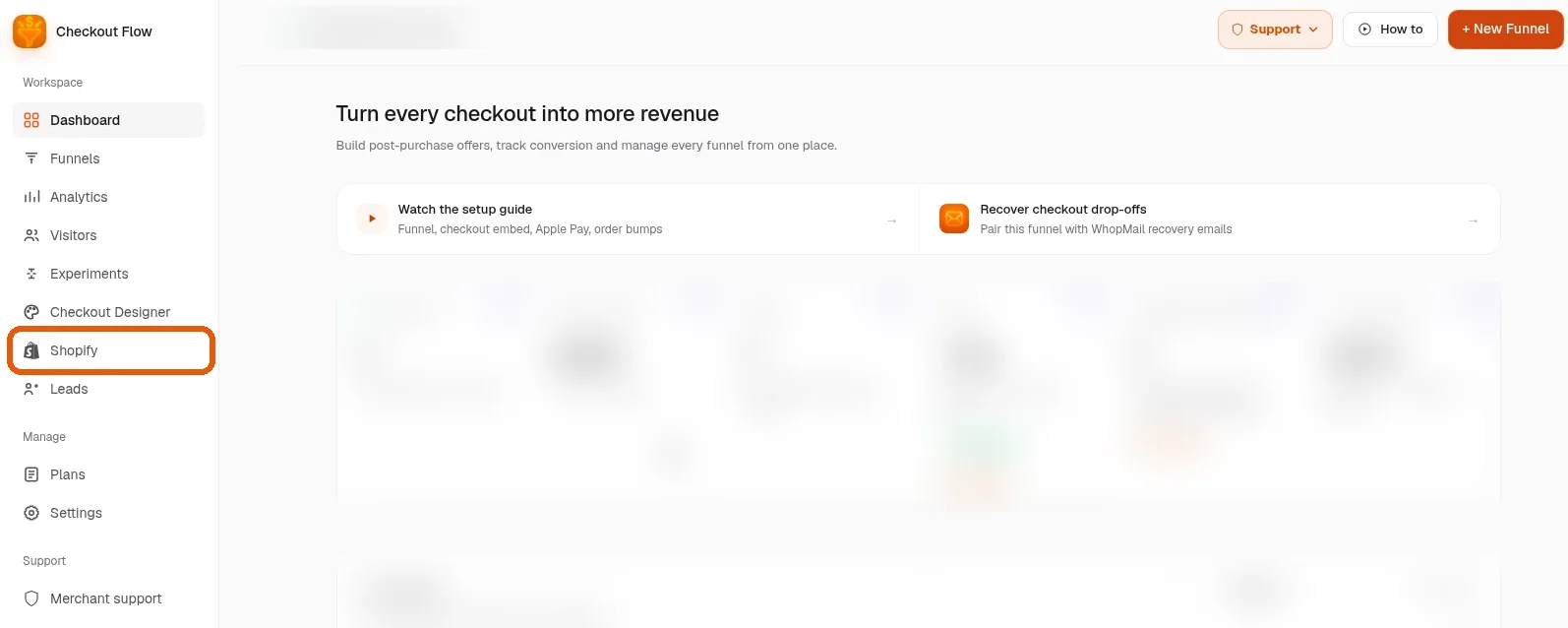
Open the app and click Shopify in the sidebar
Open the app from your Whop dashboard and click Shopify in the left sidebar. This is where your store connection lives.
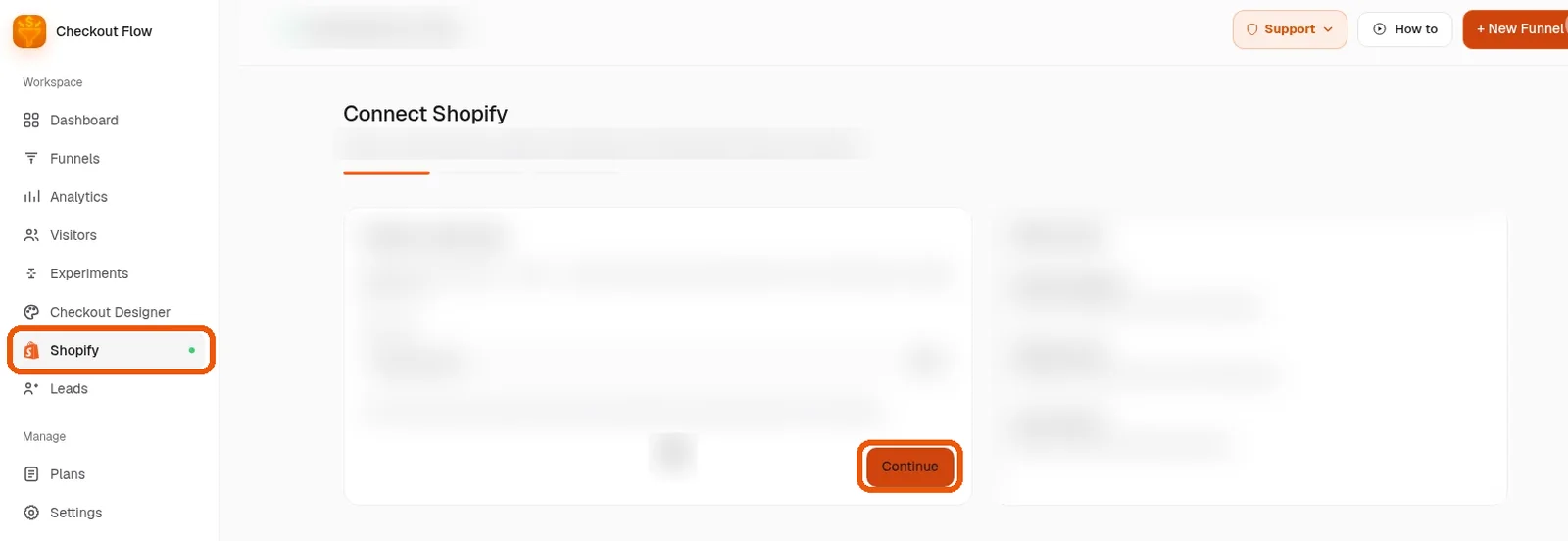
Follow the guided setup
The app walks you through connecting your store, one screen at a time. Click Continue on each step. Most stores are done in about 10 minutes.
You are live
Run a test order from a product page. When it lands in Shopify, your Whop checkout is live. Native Shopify checkout stays available as a fallback.
Whop checkout vs Shopify checkout
| Shopify checkout | Whop checkout on Shopify | |
|---|---|---|
| Who processes the payment | Shopify Payments or a gateway | Your Whop company |
| Apple Pay and Google Pay | Tied to Shopify Payments on many stores | Through Whop on supported devices |
| PayPal | Your own PayPal account | Through Whop, no PayPal account needed |
| One-click upsell after payment | Needs Shopify Payments-based apps | Built in, same card |
| Where orders live | Shopify | Shopify |
| Shop Pay | Yes | No |
Things to know before you switch
- Shop Pay goes away. Shop Pay is part of Shopify's checkout. Buyers use Apple Pay, Google Pay, cards or PayPal instead. See Apple Pay and Google Pay without Shopify Payments.
- Some checkout apps will not apply. Apps that depend on Shopify Payments may stop running once checkout moves to Whop.
- Check your Shopify bill. Confirm how synced orders appear on your Shopify invoice for your plan.
- Whop has its own rules. Whop reviews businesses under its own policies, and Whop's processing fees apply on every charge.
Whop Shopify checkout FAQ
What is Whop Shopify checkout?
It is a Whop-powered checkout page for your Shopify store. Buyers shop on Shopify, pay on Whop, and the paid order is created back in Shopify.
How do I add Whop checkout to Shopify?
Install our official Whop app, open it, click Shopify in the sidebar and follow the guided setup. Most stores are live in 10 to 15 minutes.
Does Whop checkout on Shopify support Apple Pay and Google Pay?
Yes. Apple Pay and Google Pay show on supported devices, along with cards and PayPal through Whop.
Do my discount codes work with Whop checkout?
Yes. Discount codes and line items come from the buyer's Shopify cart into the Whop checkout.
Will orders from Whop checkout show up in Shopify?
Yes. Paid orders sync into Shopify for fulfillment, and tracking syncs back to Whop when you fulfill.
Can I customize the Whop checkout for my Shopify store?
Yes. Use the checkout designer for colors, fonts, banners, order bumps and reviews, or keep the default and go live.
Do I need to edit my Shopify theme code?
No. The basic install happens inside the app's guided setup with no theme code edits.
Related guides
Ready to raise your order value?
Install OneClick Upsell on Whop and build your first upsell funnel today.
Some links to Whop on this site are affiliate links. If you sign up through them we may earn a commission, at no extra cost to you.