You run a Shopify store and someone told you to "connect it to Whop". Where do you even start? Not in Shopify's payment settings: Whop is not listed there. You start on Whop, with our official Whop app, and the app connects back to your Shopify store.
This walkthrough is written for Shopify merchants. It covers what to prepare, the setup itself, what changes inside your Shopify admin afterwards, and how to test safely.
What connecting Shopify to Whop actually does
Once connected:
- Shoppers still browse your Shopify theme and fill their Shopify cart.
- At checkout they pay on a Whop-powered checkout page with cards, Apple Pay, Google Pay or PayPal.
- The charge runs through your Whop company, and Whop pays you out.
- The paid order is created in Shopify, so fulfillment does not change.
- When you fulfill, tracking syncs back to Whop.
You are not migrating your store. You are adding Whop as the way your store gets paid.
Before you start: a 5-minute checklist
Have these ready and the setup goes smoothly:
- Your Shopify store with products, prices and shipping rates already set. Whop checkout uses the shipping rates you configured in Shopify.
- A Whop account and company. The company is the account that receives payouts. If you do not have one yet, you can create a Whop account.
- Payout details on Whop, so money has somewhere to go once orders come in.
- Admin access to your Shopify store, since the guided setup connects to it.
- A cheap test product, or a discount code, for your first test order.
Add one-click upsells to your Whop
Install OneClick Upsell from the Whop App Store and offer a post-purchase upsell in a few minutes.
Connect Shopify to Whop in 4 steps
Install our official Whop app
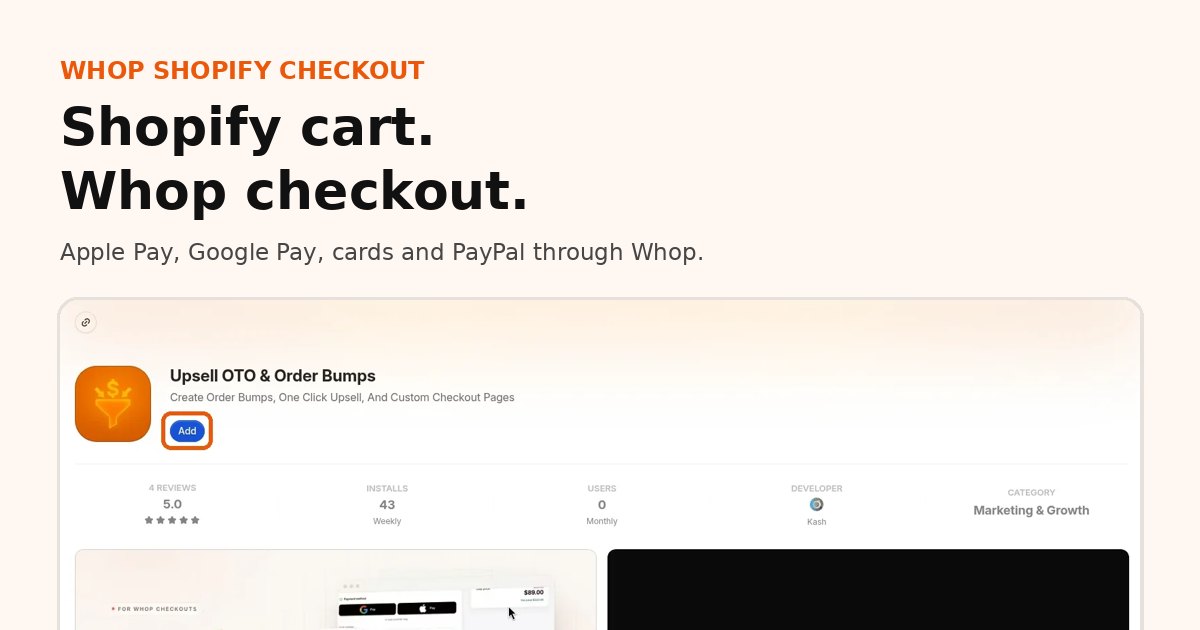
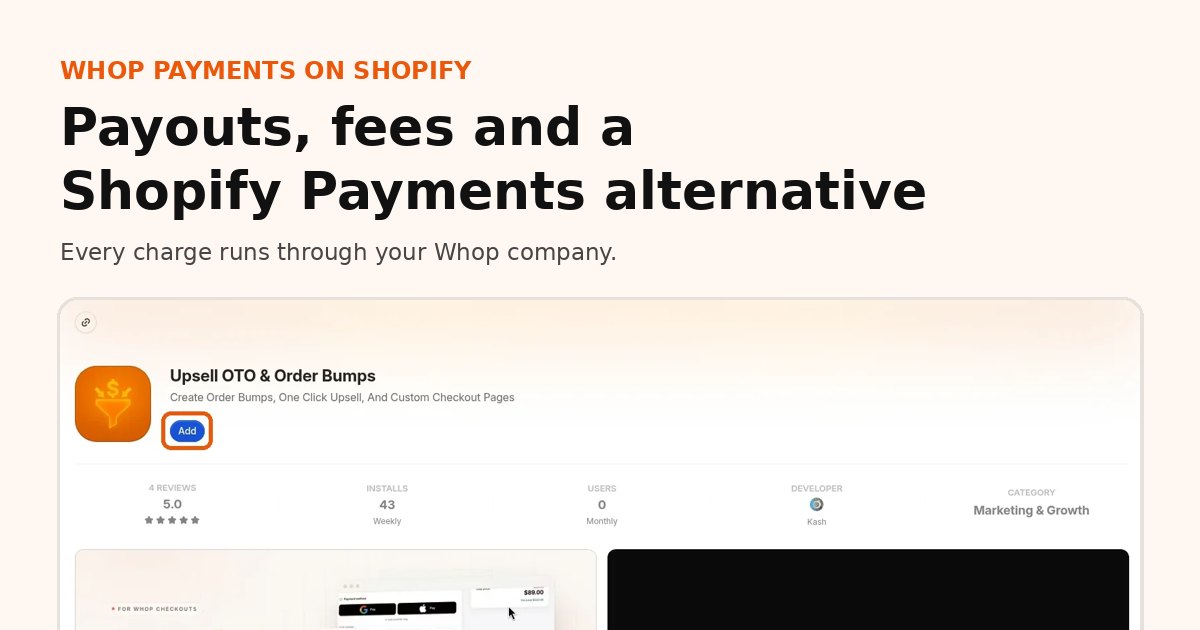
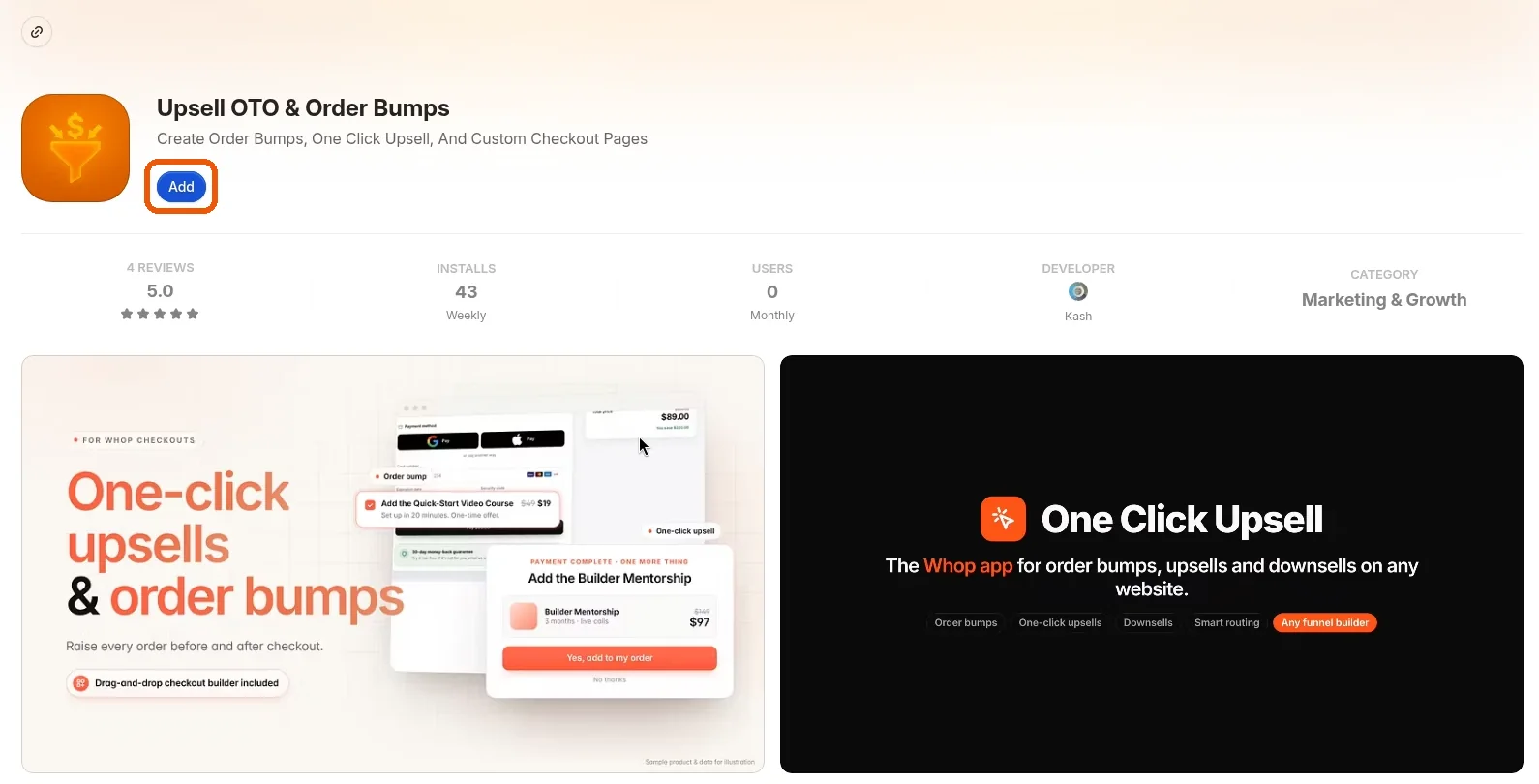
Go to our app on the Whop App Store, listed as Upsell OTO & Order Bumps, and click Add. Pick the Whop company that matches your store.
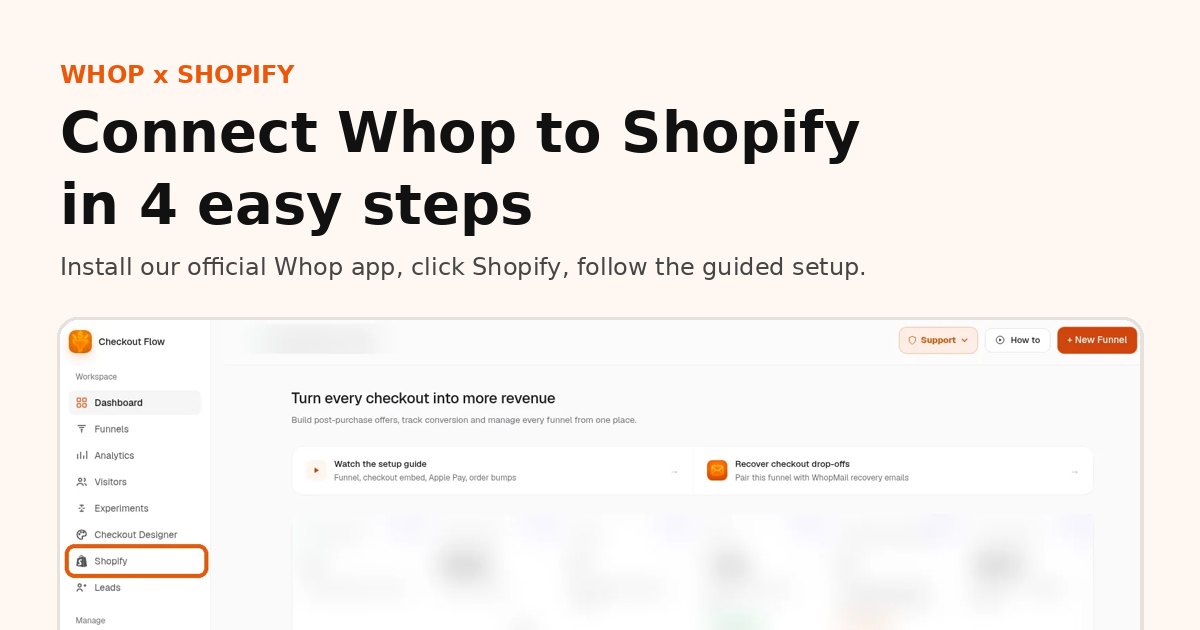
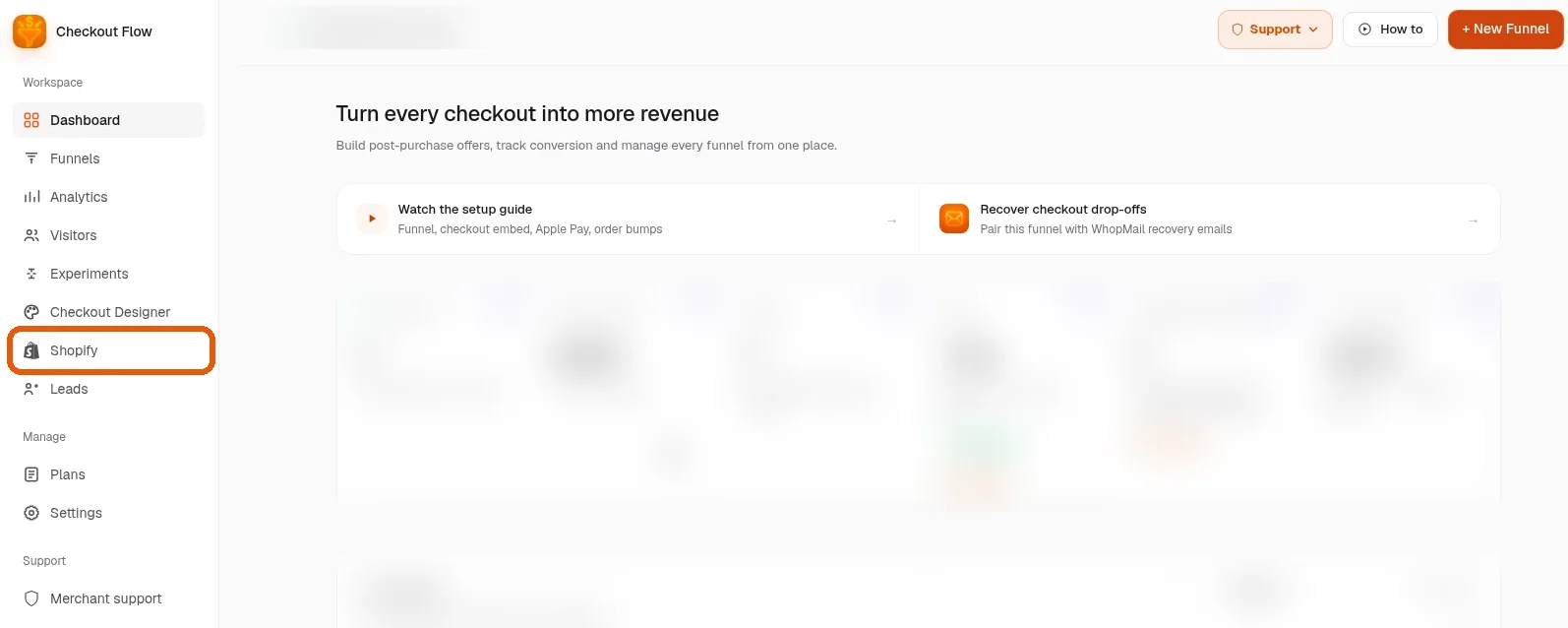
Open the app and click Shopify in the sidebar
In your Whop dashboard, open the app. You will see Shopify in the left sidebar; click it to start the connection.
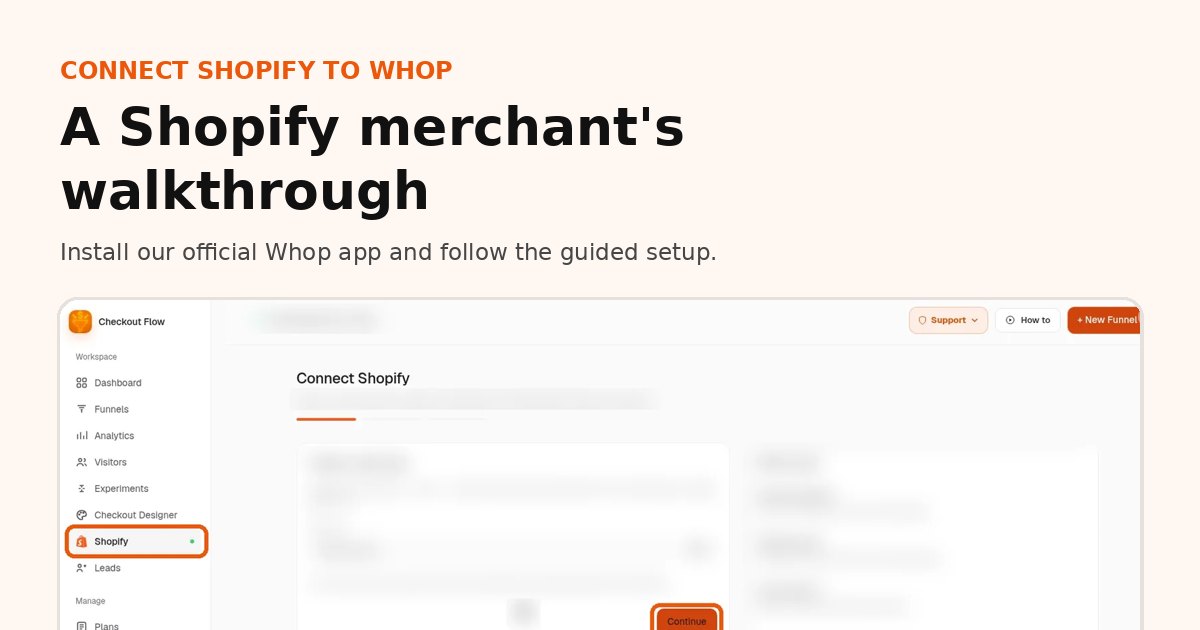
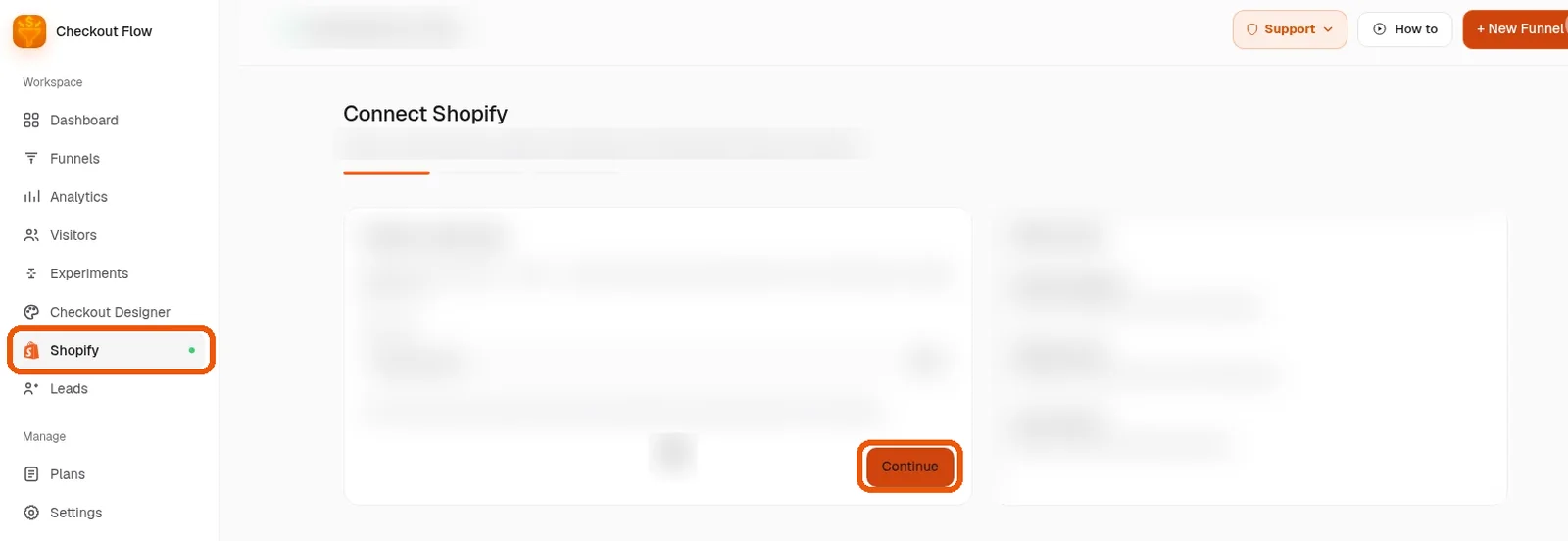
Follow the guided setup
The guided setup takes it from there, one screen at a time. Follow each prompt and click Continue. You do not need to edit your theme code. Most merchants finish in about 10 minutes.
You are live
Do a test purchase on your own store. When the order appears in Shopify admin, your store is connected and taking Whop payments.
What you will see in Shopify after connecting
Most of your Shopify admin looks exactly the same. Here is what to expect:
Orders
Paid orders from Whop checkout appear in Shopify with their line items, so your packing, shipping and inventory flows keep working. If a buyer accepts a one-click upsell after paying, that item is added to the same Shopify order.
Fulfillment and tracking
Fulfill orders in Shopify as usual. The tracking number syncs to the matching Whop payment, so buyers and Whop can see delivery status.
Refunds
Refund in Shopify admin, full or partial. The app picks up the refund and refunds the matching Whop payment, so you do not have to do it twice.
Discounts and shipping
Discount codes and your shipping rates carry over from the Shopify cart into the Whop checkout.
Payment settings
Nothing new appears in Shopify's payment settings, because Whop is not a Shopify payment provider. That is expected.
How the two stay in sync
After you connect Shopify to Whop, the app keeps both sides lined up so you never re-enter data:
- Shopify to Whop checkout: cart items, variants, discount codes and your shipping rates go into the checkout.
- Whop to Shopify: every paid order, including accepted upsells, is created in Shopify.
- Shopify to Whop after shipping: tracking numbers from fulfillments attach to the matching Whop payment.
- Shopify to Whop for refunds: refunds started in Shopify admin refund the Whop payment, full or partial.
You keep working in Shopify admin day to day. Whop is where you see payments and payouts.
Test before you send traffic
Run through this list once, before you turn ads back on:
- Add a product to the cart and click Checkout. You should land on your Whop checkout.
- Try a Buy now button on a product page if you use them.
- Pay with a card or wallet. Check that Apple Pay or Google Pay shows on a supported phone.
- Confirm the order appears in Shopify with the right items, discount and shipping.
- Fulfill the test order and check that tracking shows on the Whop payment.
- Refund the test order in Shopify and confirm the Whop payment is refunded.
Native Shopify checkout stays available as a fallback, so you are never stuck without a way to sell.
Make it yours (optional)
None of this is required to go live, but most stores do it in the first week:
- Match colors, fonts and banners in the checkout designer
- Add an order bump or a one-click upsell after payment; see Shopify one-click upsells with Whop
- Put checkout on your own domain
- Turn on Meta Pixel and Conversions API so ad platforms see real purchases
Common situations
"My Shopify Payments account is on hold"
If your storefront and admin still work, connecting Shopify to Whop gets checkout running again while you sort things out with Shopify. Read Shopify Payments suspended? Keep selling with Whop.
"I already sell digital products on Whop"
Then you already have a Whop company. Install the app on that company and connect your Shopify store; payouts land in the same Whop balance.
"I am not technical"
The setup is guided and needs no code. If you would rather have help, book a free setup call and we will connect it with you.
Connect Shopify to Whop FAQ
How do I connect Shopify to Whop?
Install our official Whop app, open it, click Shopify in the sidebar and follow the guided setup. Then run a test order.
Do I connect Shopify to Whop from the Shopify App Store?
No. You install our app on Whop, and the guided setup connects it to your Shopify store.
Will connecting Shopify to Whop change my theme or products?
No. Your theme, products, collections and cart stay on Shopify. Only checkout and payment move to Whop.
How long does it take to connect Shopify to Whop?
Most stores are live in 10 to 15 minutes, including a test order.
What happens to my existing Shopify orders?
Nothing. Existing orders stay in Shopify. New paid orders from Whop checkout are added to Shopify as they come in.
Can I disconnect later?
Native Shopify checkout stays available as a fallback, so you can switch back if you need to.
Is it the same as connecting Whop to Shopify?
Yes. "Connect Shopify to Whop" and "connect Whop to Shopify" describe the same setup. See the visual Whop Shopify integration guide.
Related guides
Ready to raise your order value?
Install OneClick Upsell on Whop and build your first upsell funnel today.
Some links to Whop on this site are affiliate links. If you sign up through them we may earn a commission, at no extra cost to you.